
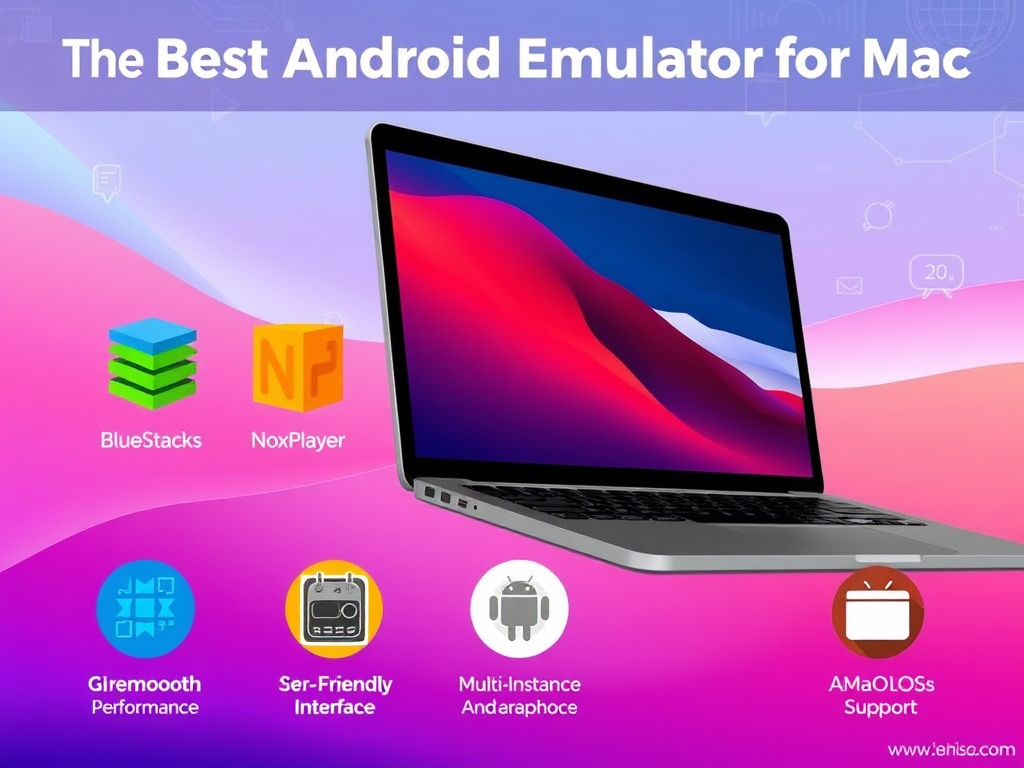
If you’re a Mac user trying to run Android apps, you’ve probably realized it’s not always as simple as clicking ‘install’. That’s where finding the right Android emulator Mac solution becomes essential. Whether you’re a developer working on a new app, a gamer wanting access to mobile-only titles, or someone who needs an Android-exclusive tool, an emulator can give your Mac access to the Android world. As more people blend different operating systems in their daily routines, the tools we use have to keep up – and emulators are doing just that.
Why Android Emulators Are Useful on a Mac
If you’re building apps, playing mobile games, or need to use a specific Android-only tool, Android emulators on a Mac are surprisingly handy. Developers get to test their work on different virtual phones and operating systems without needing dozens of devices. Gamers get to play touchscreen games with a mouse and keyboard. And productivity fans can run Android apps that may not exist for macOS.
With so many users relying on more than one platform, Android emulators help bridge the gap. You no longer have to settle for what the App Store has to offer. Whether it’s for work or fun, the flexibility they offer is hard to match.
How Android Emulation Got Better
In the early days, running Android on a Mac felt sluggish and clunky. The apps ran slowly, graphics lagged, and you needed serious patience. Today, it’s a different story. Thanks to hardware acceleration and smarter emulation software, Android apps now run with fewer hiccups. Nowadays, emulators provide smoother graphics, quicker loading, and much greater compatibility.
If you’re concerned that an emulator would bring your system to a standstill, worry no more. Most of today’s top options let you choose settings that match your Mac’s capabilities. Whether you have an M1 chip or an older Intel Mac, there’s something that works.
Top Android Emulators for Mac Users
Choosing the right emulator depends on how you plan to use it. Below are the most reliable Android emulators for Mac users, with several new additions to expand your options.
LambdaTest
LambdaTest has a cloud-based Android emulator that allows Mac users to run and test Android apps without traditional local setup. There’s no need to have heavy software or anything like that, just open real Android environments from the browser, you want, and can. The Android cloud emulator can provide you with the latest versions to legacy versions of Android accessible for compatibility testing.
Also provides developer tools that you can easily debug and inspect your apps without any other additional setup. Can run tests on native apps & hybrid apps whether an ordinary Android or customized app across many different Android device models.
Ideal for developers, testers and QA teams in various business applications that need reliable Android testing on macOS.
Android Studio Emulator
Built for developers, Android Studio Emulator is Google’s official solution. It works directly with Android Studio, allowing coders to preview, debug, and test apps across a wide range of virtual devices. From foldables to tablets and different Android versions, it covers the bases. Although it’s not for casual use, it’s ideal for professionals who require precise control.
Genymotion
If you need speed and variety, Genymotion delivers. It supports cloud-based and desktop platforms, and you can use virtual Android devices without taxing your Mac’s resources. It comes in handy for QA teams and developers who’d like to mimic actual testing conditions.Plus, it supports automation tools and integrates into CI/CD workflows.
BlueStacks
A favorite among gamers, BlueStacks brings Android gaming to the desktop with minimal fuss. It supports Google Play, offers keyboard mapping, and can even run multiple games at once. It also includes game-specific optimizations, making it easy to launch and play without tweaking lots of settings.
NoxPlayer
NoxPlayer combines performance and control in a sleek interface. It allows users to record macros, run multiple instances, and map game controls easily. It’s especially appreciated by users with lower-end systems since it doesn’t hog resources. If you want an emulator that just works without overcomplicating things, this one is worth a look.
LDPlayer
Optimized for gaming, LDPlayer supports high frame rates and responsive controls. You can tweak performance settings like RAM and CPU usage, and it offers smooth operation even on mid-range machines. With support for gamepads and keyboard mapping, LDPlayer delivers a tailored gaming experience.
ARChon
ARChon is not a typical emulator – it’s a Chrome-specific runtime which lets you run Android apps natively within the browser. It does need some technical configuration, but it’s light and perfect for someone who just wants occasional access to Android apps on macOS.
Bliss OS
Bliss OS provides a distinct dual-boot or virtual machine experience. It’s an Android operating system that can be run on your Mac via virtualization software such as VirtualBox or VMware. Not technically an emulator, it’s a robust solution for those who need a full Android OS experience.
MeMU (via Parallels or Boot Camp)
While MeMU is not natively supported on macOS, it can be run successfully by most users with Parallels Desktop or Boot Camp. Praised for its gaming capabilities and customization options, MeMU offers detailed control over CPU and memory usage. It’s a bit of a workaround, but one that might be worth considering if you’re after a high-performance emulator.
KoPlayer
KoPlayer is optimized for performance and stability, particularly in gaming scenarios. Although the Mac version is not yet available, most users have been able to run it using virtualization software. Its ease of use and Google Play integration make it an attractive choice for users who are familiar with non-native solutions.
Emulator Compatibility with Apple Silicon (M1 & M2 Chips)
Since Apple switched from Intel processors to Apple Silicon (M1 and M2), emulator compatibility has become a key concern for Mac users. Most Android emulators were originally designed for x86 architecture and needed to be updated to run smoothly on the new ARM-based processors. Thankfully, support has been improving steadily.
Android Studio’s Emulator now supports ARM images and natively supports Apple Silicon, with stable performance not depending on Rosetta 2. Developers are now able to emulate Android environments with significantly shorter startup times and less overhead. Genymotion also increased M1 Mac support through its cloud option, running flawlessly no matter the local architecture.
For other emulators such as BlueStacks, the macOS iteration remains restricted but the company is actively developing a version tailored to Apple Silicon. Meanwhile, there are workarounds that users can use through virtualization software, though results may differ.
Picking an emulator that supports Apple Silicon natively or via the cloud ensures better battery life, fluid graphics, and lower latency. This is particularly crucial for developers and gamers who depend on stable, high-performance testing environments.
Why Cloud-Based Emulators Are Gaining Ground
Not everyone wants to install heavy software. That’s where cloud-based emulators shine. They let you run Android apps from your browser, no downloads required. They’re especially helpful for teams who need to test across multiple Android versions and devices quickly.
For those searching for an Android emulator for iPhone, platforms like LambdaTest offer a smarter solution. LambdaTest provides cloud-based testing tools that simulate Android apps on real devices – all accessible from your Mac. You can run tests, debug issues, and manage your QA workflow without cluttering your local setup.
Getting Set Up
Installing an Android emulator on your Mac is pretty straightforward. First, download the installer from the official site. Once installed, allocate system resources like RAM and CPU cores to match your usage. For developers, it helps to install system images for different Android versions.
If the emulator supports Google Play, you can log in and install apps directly. Otherwise, drag-and-drop APK files usually work. Before launching apps, make sure virtualization is enabled on your system and update your graphics drivers for smoother visuals.
Making It Run Faster
To avoid lags, adjust the emulator settings to suit your Mac. Allocate more RAM and switch to OpenGL or DirectX based on your system. Keep your emulator and macOS updated to prevent bugs. Use SSD storage if possible, and close other apps that might slow things down.
Also, periodically clear your emulator’s cache and unused apps to maintain peak performance. Think of it like housekeeping – it keeps everything running smoothly.
If your emulator freezes, crashes, or refuses to open apps, don’t worry. Typical solutions involve updating macOS, adjusting graphics settings, or using a different Android version. Ensure your network settings are stable, and verify if your antivirus is causing interference.
When Things Go Wrong
You can also uninstall and reinstall the emulator.
Security Tips
Running Android apps on a Mac means keeping things secure. Stick to apps from the Play Store or verified APK sources. Be cautious about permissions – don’t give apps access they don’t need. Avoid third-party tweaks or emulator hacks unless you’re sure they’re safe.
Use a firewall, enable security features in your emulator, and keep everything updated. These simple steps go a long way in protecting your data and system.
What’s Next for Android Emulation on Mac
Android emulators are only getting better. Expect faster load times, better game optimization, and even support for newer Android features as they roll out. Integration with tools like Visual Studio Code and GitHub could soon make emulators even more useful to developers.
Cloud platforms like LambdaTest are also expected to expand. Imagine spinning up any Android device, anywhere, anytime – right from your browser. That’s where things are headed, and it’s good news for anyone working across platforms.
Wrapping It Up
Picking the right Android emulator Mac option depends on what you want to do. Developers will feel at home with Android Studio or Genymotion. Gamers will love BlueStacks and LDPlayer. And if you’re after something quick and powerful in the cloud, LambdaTest is worth checking out.
You don’t need to look for an Android emulator for the iPhone when there’s a Mac-friendly solution already available. LambdaTest gives you real device access and automation features that go beyond traditional emulators.
So, whether you’re building apps or playing games, there’s an emulator that fits your workflow. Set it up right, keep it updated, and your Mac will run Android apps like a pro.
Apart from that if you want to know about “Easy Tips for Making Your Wellness App More User-Friendly” then please visit our Tech Category.